You can update a specific detail in an image without redoing the entire composition. This targeted approach helps when you need to adjust an isolated object, correct a visual inconsistency, or refresh an element while keeping the rest of your creative work intact. Everything outside the marked area stays untouched, preserving your approved composition and colour balance.
Step 1: Choose Amend and pick your image
Begin by opening the Process panel and selecting Amend. Within this workspace, press Pick an image to select the file you want to adjust. You will see the main interface appear, displaying your chosen picture alongside the What should change? input field and the Mark regions on the image button.
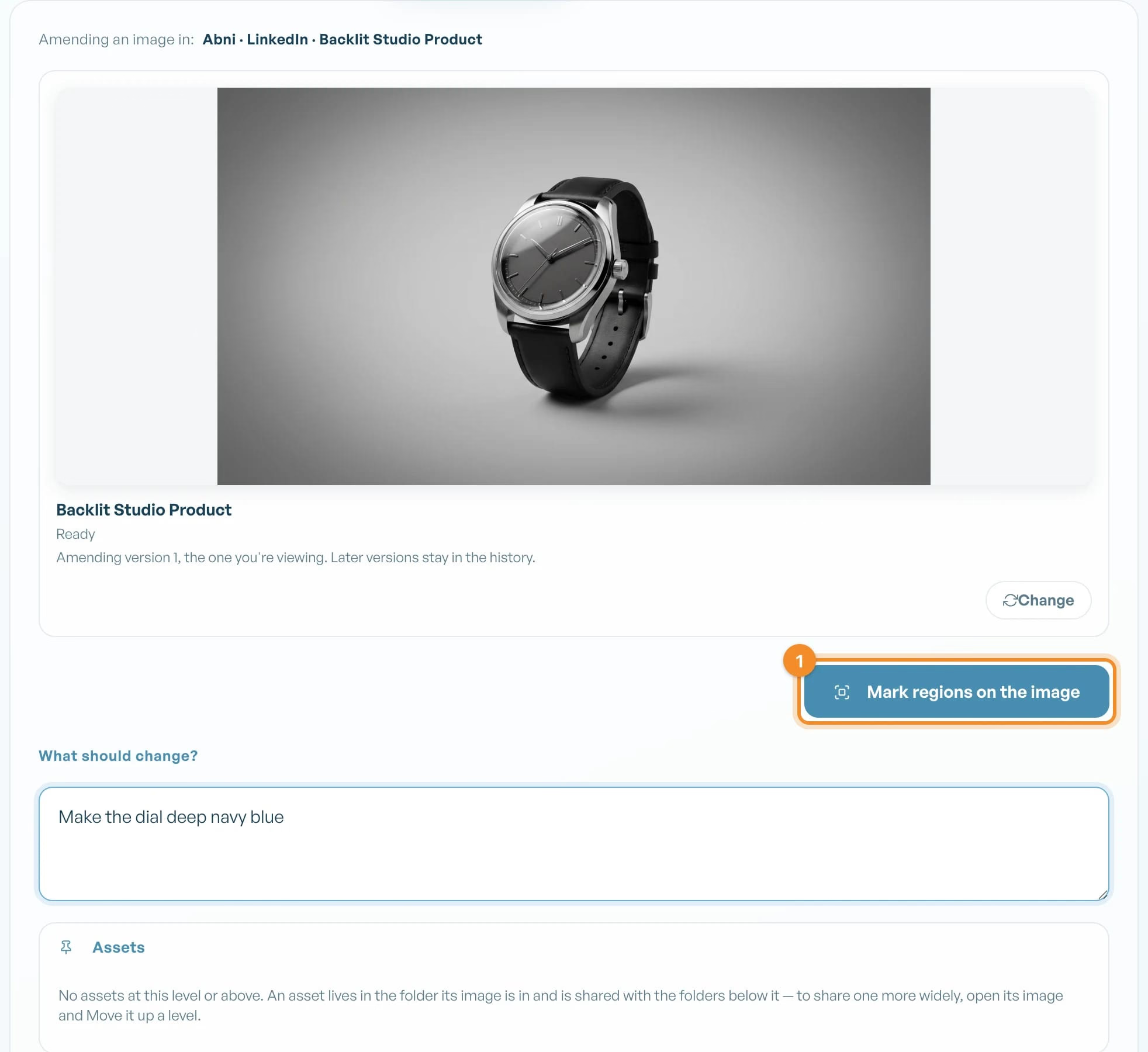
Step 1: Choose Amend and pick your image
Using Amend allows you to make careful edits that produce a new version of the same image without starting again. Your existing brand style remains consistent across all untouched areas. Because design rules are not reapplied across the whole canvas, everything you do not mention remains exactly as it was in the original asset.
Step 2: Press Mark regions on the image
In the Amend panel, press Mark regions on the image. When you click this button, the interface opens the regional editing view over your picture.
You will see your image ready for markup, accompanied by the prompt to Draw a box for each change. This view allows you to isolate the exact parts of the image that require updates, keeping the surrounding creative work protected from unintentional edits.
Step 3: Drag to draw a box over the area to change
Click and drag across the image canvas to create a box around the exact area you want to update. As you drag, you will see a boundary appear over the selected section under Draw a box for each change.
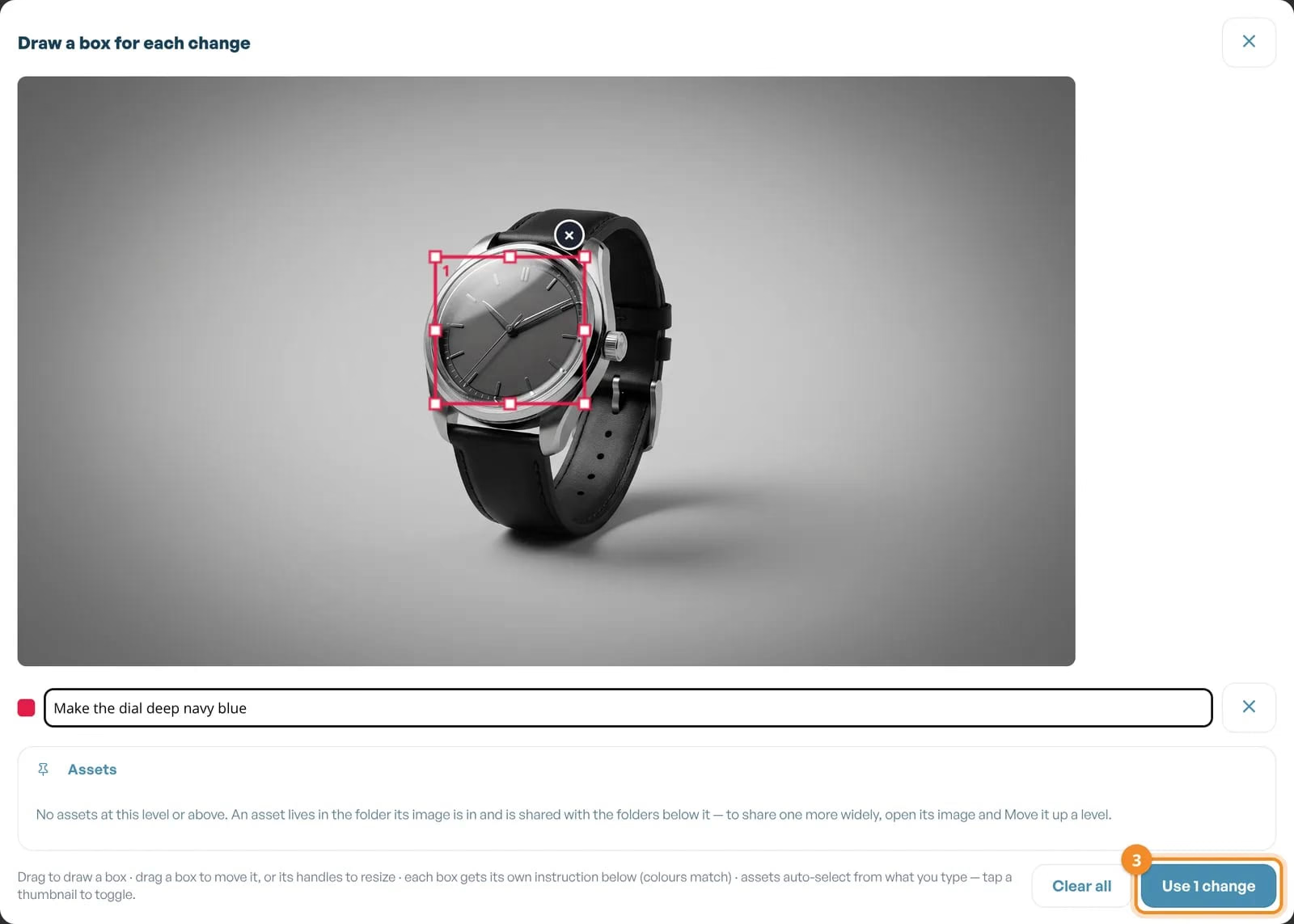
Step 3: Drag to draw a box over the area to change
Place your box so that it covers only the detail you intend to alter. You can draw up to 6 boxes. If you make a mistake or want to start fresh, press the Clear all button to wipe your drawn selections and begin again.
You can also amend a selection by dragging the corners or moving it by clicking and dragging the middle of the selection box
Step 4: Write what changes in the box
After drawing your selection boundary box, look beneath the selection to locate the prompt area. You will see the field labelled What changes in this box?.
Type your specific instructions into this field, stating plainly what should change inside that boundary. Keep your text focused on the designated section. Because automation handles the regional adjustments, any items saved in your Library under Assets (using Set as asset) are recognised when you name them directly in your box instruction. This ensures your updates remain precise and on brand.
Step 5: Confirm your regions and press Amend image
Review your drawn boxes to ensure each What changes in this box? field contains the exact directions you want applied.
Before generating the revision, check the credit cost shown for your task. The price changes slightly on the edit required. Once you confirm the details, press Amend image.
The tool generates your revision while keeping your original creative work safe. To view the result, open the Library, open an image, and select Versions. You will see your new file stored neatly within Versions, leaving your source image intact.
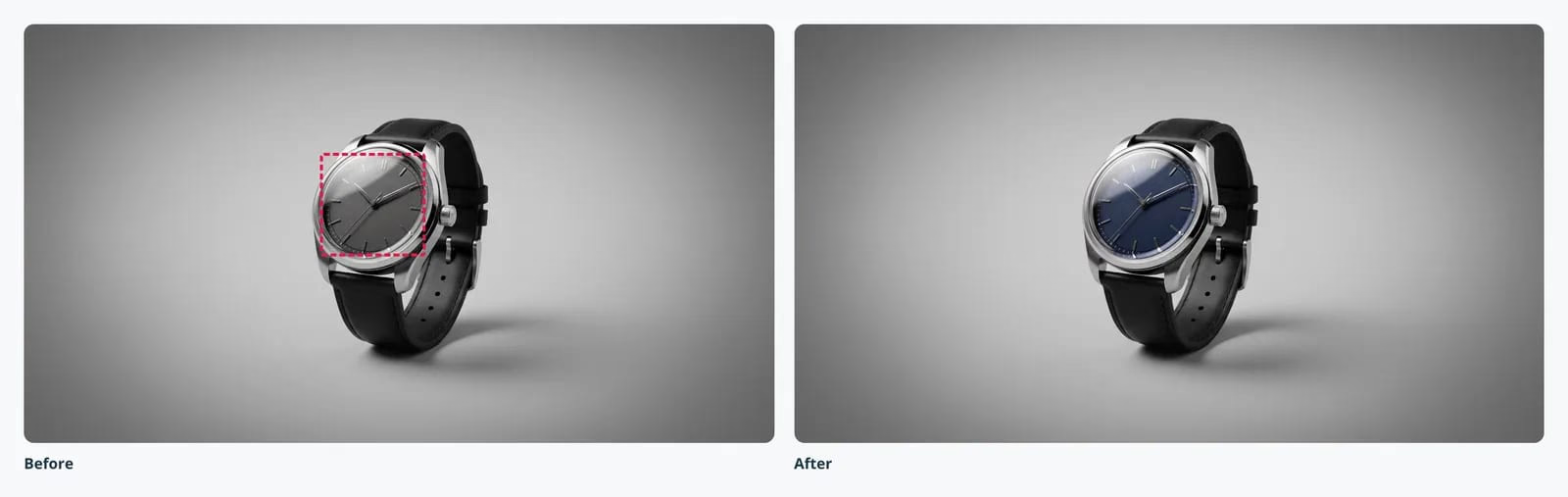
Step 5: Confirm your regions and press Amend image
Good to know
Preserving your files: In the Library, opening an image gives you access to both Versions and Duplicate, making it simple to duplicate an image or review previous iterations.
Choosing the right process: Under Process, you can select other dedicated tools for your creative work, including Enhance, Brandify, Amend, and Resize.
Working with text: If you need to produce written copy instead of imagery, navigate to Process › Text. You can toggle between Images and Text to access tools such as Create, Brandify, Amend, Resize, and Recreate.
What next
Try it in Abni: open the app. New to Abni? Start here.
Related how-tos:
- How to resize an image for every channel (coming soon)
- How to recreate an image in your brand style (coming soon)