How Abni works, start to finish.
Every part of the studio, in the order you meet it. Ten minutes to read; a lifetime of not re-briefing your brand.
- The idea: brand knowledge lives in folders
- Getting in
- Your studio: Level 1, 2 and 3 folders
- Teaching Abni your brand
- Library and assets
- Opening an image: versions, details, used in
- Making things: the five processes
- Abni chat
- Writing in your voice
- Credits and billing
- Your team
- API and automation
- Settings and getting out
Your brand lives in folders, and the folders remember.
Most tools make you describe your brand every time you ask for something. Abni asks once, then keeps it where the work happens.
A studio is organised into folders, three levels deep: Level 1 folders at the top, Level 2 folders inside them, Level 3 folders inside those. Many teams use a Level 1 folder per brand or client, Level 2 for product lines, and Level 3 for individual campaigns or projects. Every folder can hold its own brand knowledge. The colours and photographic style pulled from your best images. The rules you want kept. The logo, product shots and people that must be the real thing. The purpose of the folder, in your own words. The voice you write in.
Anything a folder doesn't set for itself, it inherits from the folder above. A Level 3 folder for the summer range starts with everything the folders above it already know and adds only what makes summer different. A child folder extends its parent; it never replaces it. Folders that sit side by side can't see each other, so the under-8s line never leaks into the professional range.
This is why Abni feels different in use. You don't write a paragraph of brand instructions into every prompt. You open the folder you're working in and say what you need. Ask for a hero image in the summer folder and Abni already knows the palette, the light, the rules, which bottle is the bottle, and what this folder is for. Move to another folder and it knows that one instead.
It also means the brand gets better as you work. Fix a rule once, at the level it belongs to, and every folder beneath it picks it up. Lock a folder's brand style once it's right and nothing below can drift from it.
Sign in with your email. No password, nothing to install.
Abni runs in your browser at app.abni.ai.
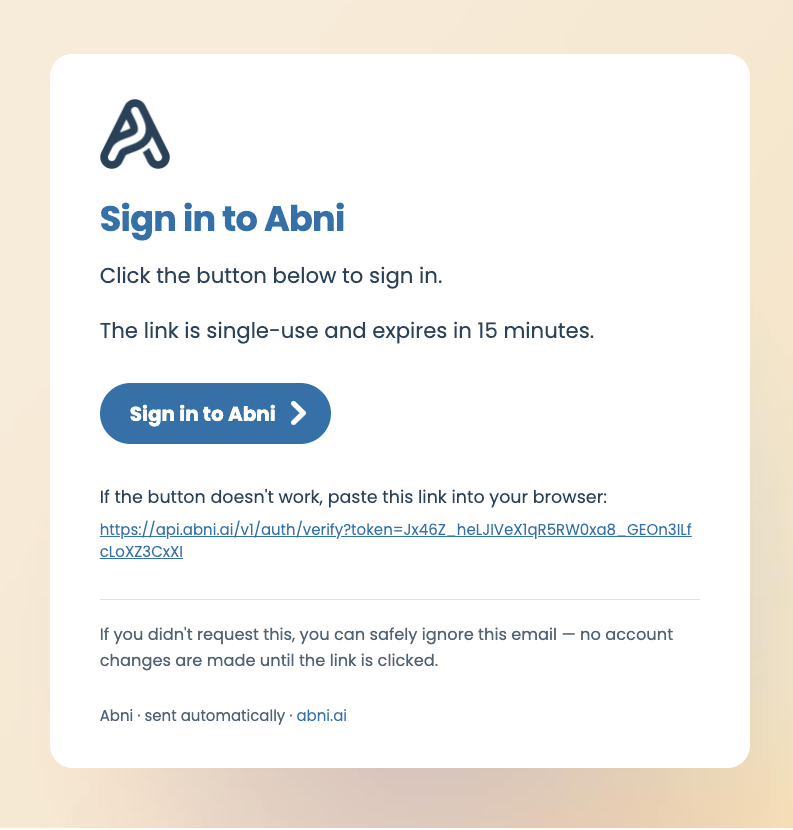
Go to Get Started, enter your first name, your company and your work email. We send a single-use link that signs you in; it expires after 15 minutes, so use it while it's fresh. Coming back later? The sign-in page works the same way: enter your email, click the link.
Your first sign-in creates your studio, named after your company. You'll see a welcome panel with 200 free credits, enough for your first few images, and one last step: add a card. Nothing is charged until you choose to buy more credits, and you can remove the card at any time from the Credits page. Until a card is saved, the studio shows an Add a card to start creating banner and the free credits stay locked.
One account has one studio. Colleagues you invite join yours rather than creating their own.
If the sign-in email hasn't arrived
Check spam or promotions first. It comes from noreply@abni.ai with the subject Sign in to Abni. If it's more than 15 minutes old, request a fresh one. Still nothing? Email support@abni.ai and we'll check the delivery log.
Level 1, 2 and 3 - folders
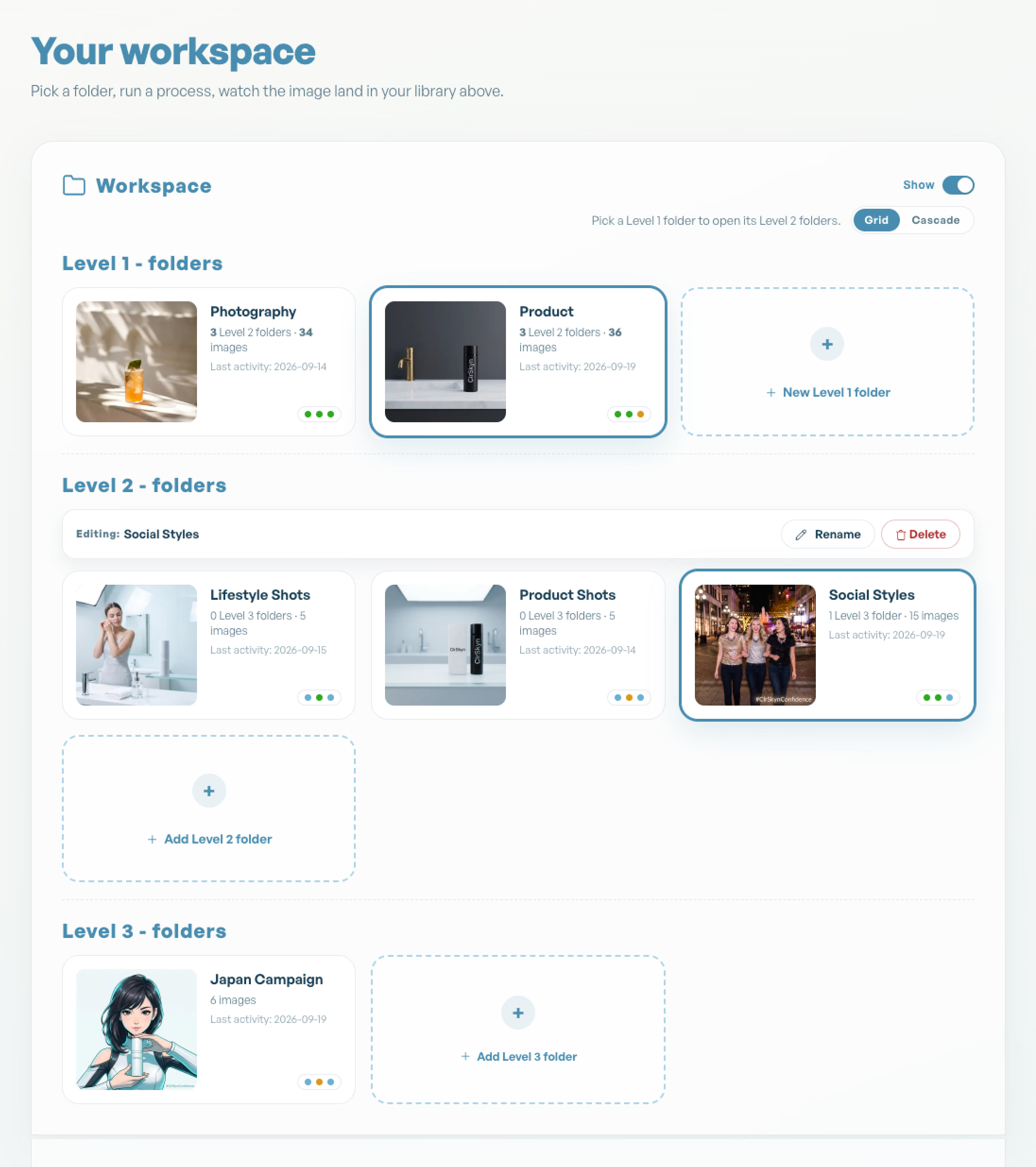
The Workspace panel at the top of the dashboard is your folder tree.
Start with New Level 1 folder. Inside a Level 1 folder you can add Level 2 folders, and inside a Level 2 folder, Level 3 folders. Three levels, no deeper. Switch between Grid and Cascade views depending on whether you want the big picture or the drill-down; the breadcrumb at the top of the page always shows where you are, and All folders takes you back to the top.
Each folder tile shows its hero image, how many folders and images it holds, and three small dots for Purpose, Images and Text. Grey means nothing is set yet. Blue means the folder is inheriting from its parent. Orange means it has its own settings. Green means those settings are locked.
Rename a folder from its header. Deleting one asks you to confirm what goes with it, and won't let you delete a folder that still has children.
Everything you make lands in the folder you were in when you made it. Pick the folder first, then create; it's the single habit that makes the rest of Abni work.
Give it three to five images you'd be proud to have made.
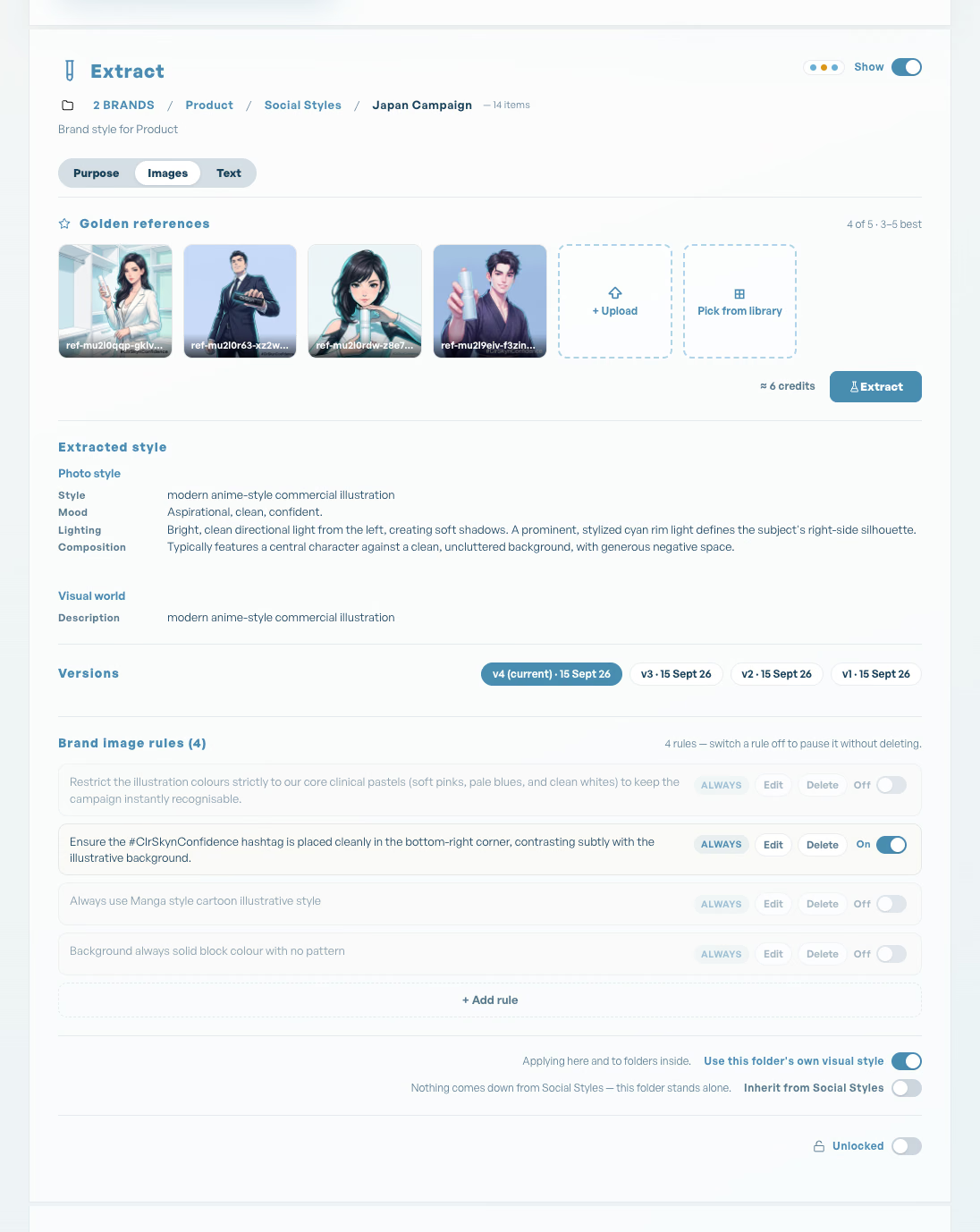
Select a folder and the Extract panel appears. This is where a folder learns what it looks like.
Golden references
Upload your three to five best images, or pick them from your library. These are the pictures that make everyone round the table say yes, that's us. They don't need to be your latest campaign; they need to be your best. Then press Extract. About a minute later the Extracted style block fills in: photo style (or illustration style, for drawn brands), colours, lighting, mood, composition, and the visual world the brand lives in. Change the references and the panel tells you to re-extract.
A good first session, if you're starting from nothing: create your first folder, make a few sample images exploring directions, pick the one that feels right, and extract from that. Then add a couple of rules and test.
Purpose
The Identity block records what the folder is for, what belongs in it and what it must never be. You don't fill a form for this. Tell Abni in chat: this folder is our under-8s line, always playful, never clinical, and it saves here.
Rules
Brand image rules are the things you want kept every time: the logo is always bottom right, never show the product open, people are always mid-motion. Add a rule and, if it needs a real asset, pin the asset to it so it's attached automatically whenever the rule applies. The pinned asset can be an image or a document: the logo file for a placement rule, the claims sheet for a rule about what can be said. Switch a rule off to pause it without deleting it. Rules set on a parent show up in every folder below, where you can switch them on or off but only edit them at their source.
Own or inherited
Each folder has two switches: use this folder's own style and inherit from the parent. Most folders leave both on. Park a folder's own style and it stops applying to that folder and everything inside it.
Lock it
Once a folder's style is right, lock it. Locked folders can't be edited by accident, and the lock applies in every process. Every extraction is kept as a version; preview an older one and restore it if the new one was a wrong turn.
Everything you make and upload, in one place.
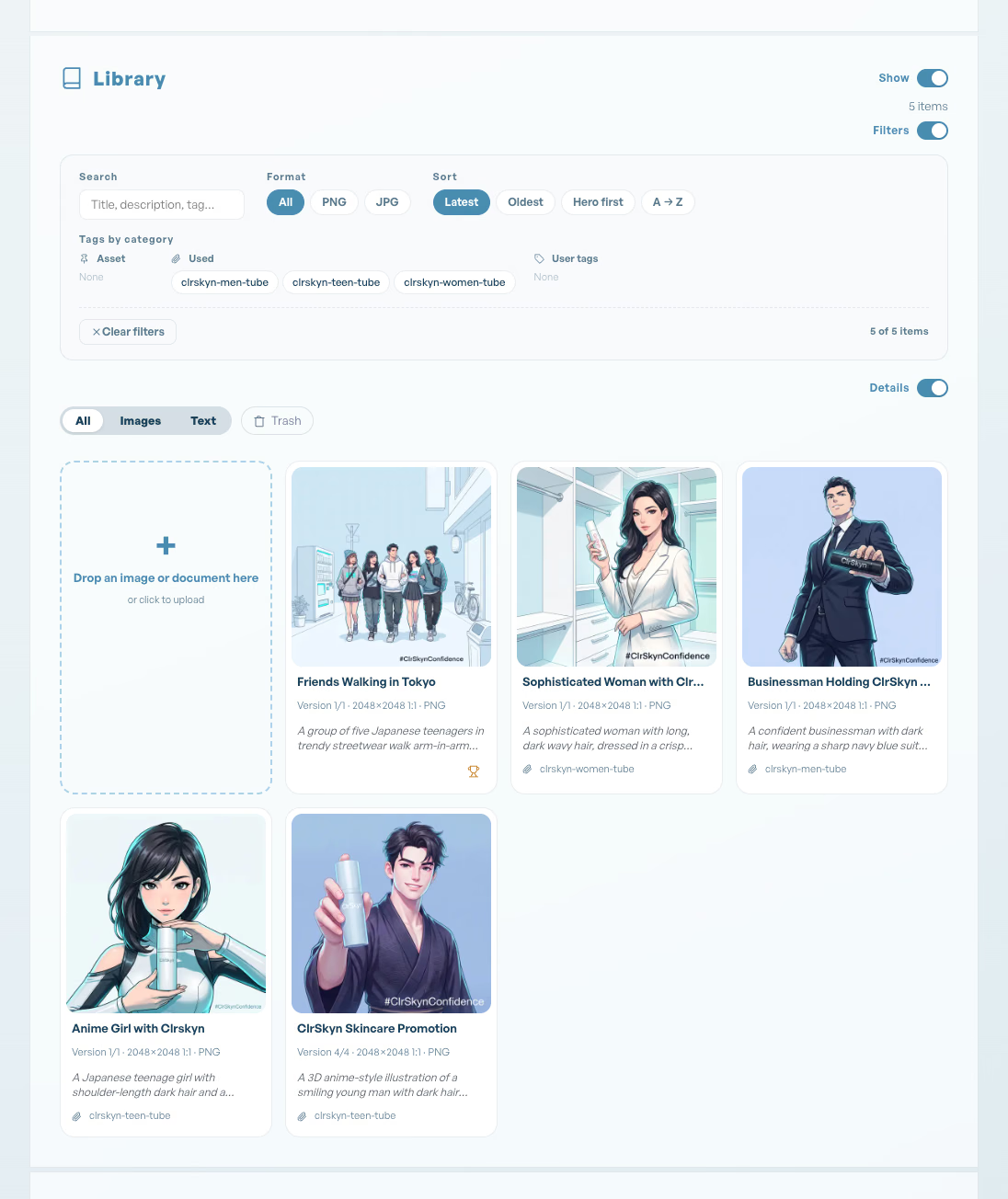
The Library panel holds the images and documents in the folder you're viewing.
Use the filters to search by title, tag or format, and the sort to bring the latest or the hero images to the front.
Uploading
Open the folder the files belong in, then drop them anywhere on the library, or click the + tile to choose them from your computer. Several at a time is fine; each one appears as a tile straight away and fills in as it uploads.
You can also drag an image straight from another website. Pick it up in the other browser tab and drop it on the library; there's no need to save it first. If a site won't let its images be fetched, Abni says so, and nothing is charged. Save the image to your computer and drop the file instead.
- Images: PNG, JPEG, WebP, AVIF, GIF, HEIC (iPhone photos) and SVG, up to 100 MB each.
- Documents: PDF, Word (.docx), Rich Text (.rtf), plain text (.txt), Markdown (.md) and web pages (.html), up to 50 MB each.
WebP, AVIF, GIF, HEIC and SVG files are converted to PNG or JPEG as they arrive, so every image works in every process. An animated GIF keeps its first frame. Very large photos are scaled down to 4,096 pixels on the long side, which is more than any process needs. Older Word files (.doc) aren't supported: open them and save as .docx. Documents become text you can proofread, rework and use as assets.
Assets: when it has to be the real thing
Some things can't be approximated. Your logo. The actual bottle. Your founder's face. Select an image in the library and choose Set as asset, then give it a short name like bottle-hero. From then on you can call on it by name in any brief, and Abni uses the real asset rather than a lookalike.
Assets belong to the folder you set them in and are visible to every folder beneath it. The asset picker in each process groups them by level, deepest first, so a Level 3 folder sees its own assets, then its Level 2 folder's, then its Level 1 folder's. Rename an asset and it renames everywhere it's used.
Assets cross both ways
An asset isn't only an image. A document in the library, a product spec, a tone guide, a list of claims you're allowed to make, can be set as an asset too, and both kinds work in both directions. Name a text asset in an image brief and its content rides the generation. Name an image asset in a text brief and Abni writes from what it knows about that image, so the copy describes the real bottle, not a generic one. Pin an asset of either kind to a rule and it's guaranteed to be referenced every time the rule applies.
Housekeeping
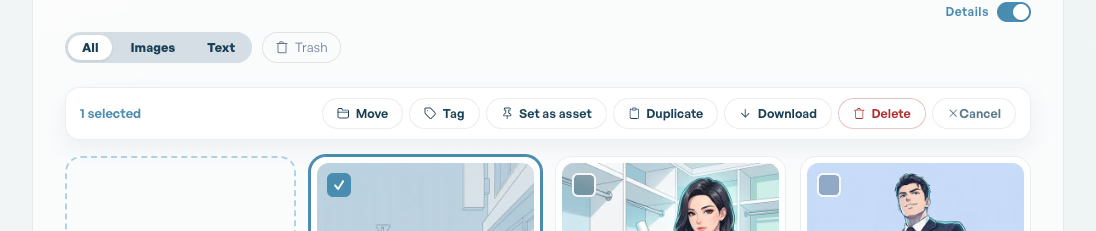
Tick several tiles and a bar appears: Move to another folder, Tag, Duplicate, Download, Delete. Deleted items go to Trash and can be restored for 30 days. Click any tile to open it; the next section covers what you'll find.
Every image carries its own history.
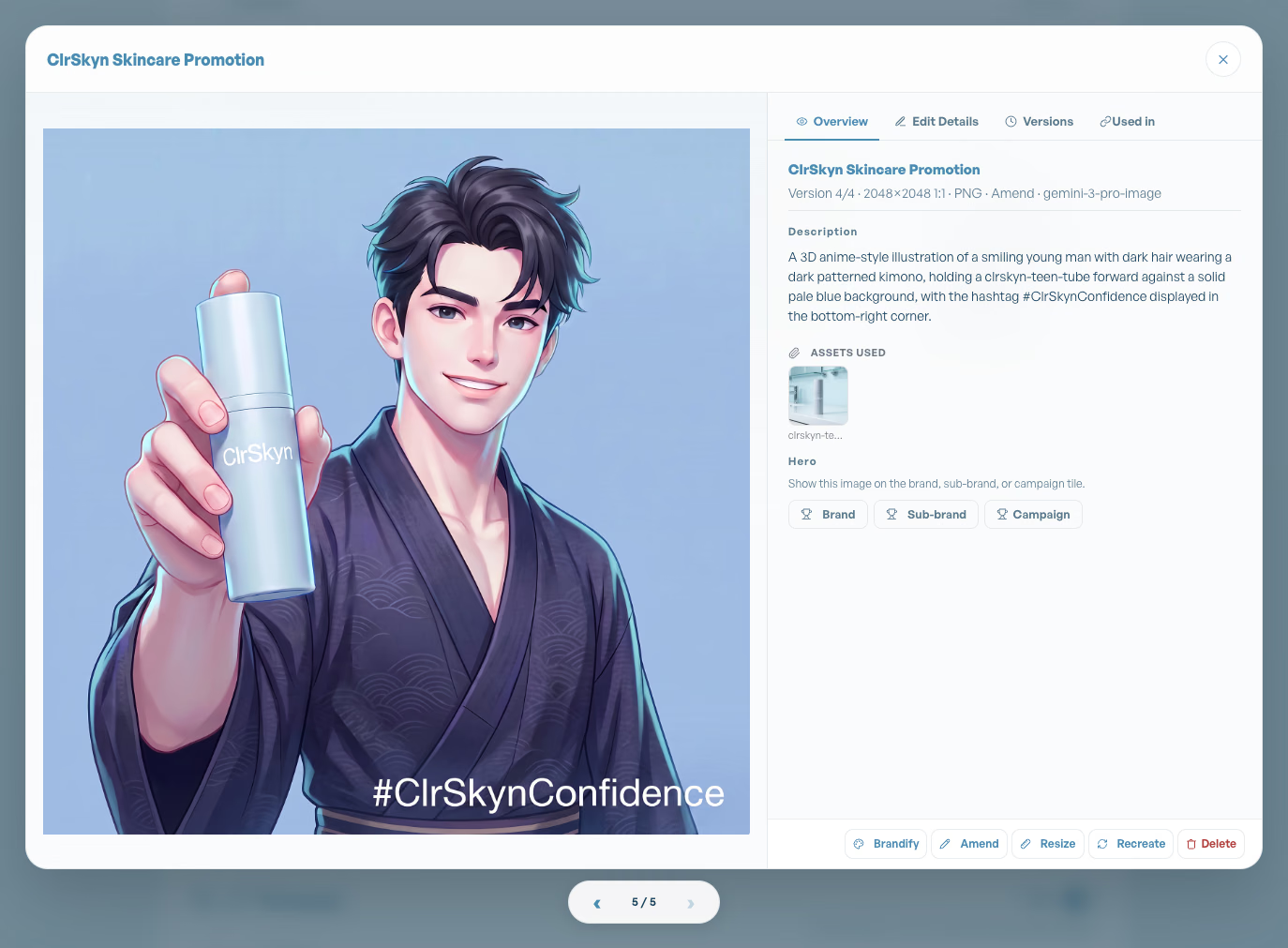
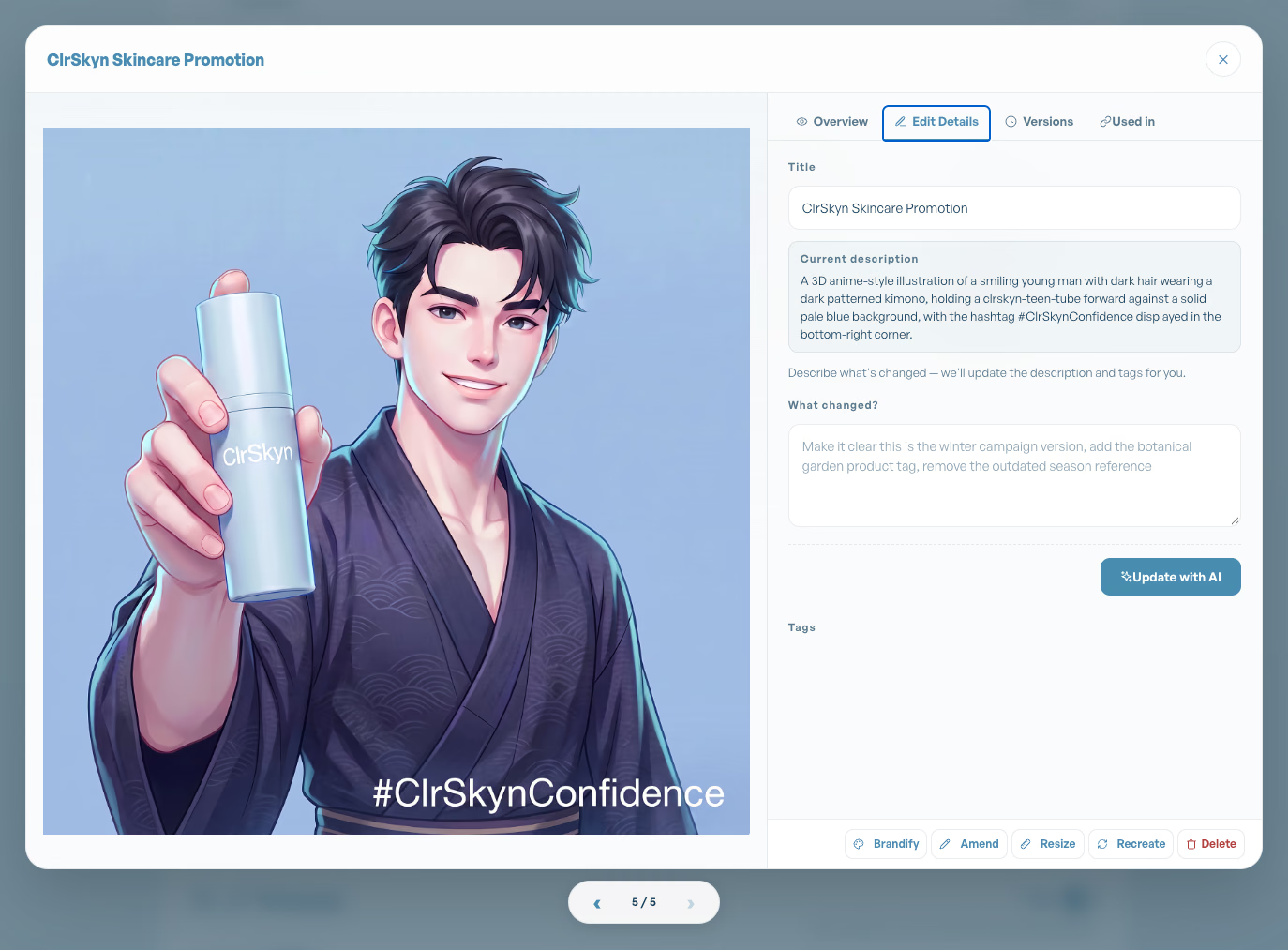
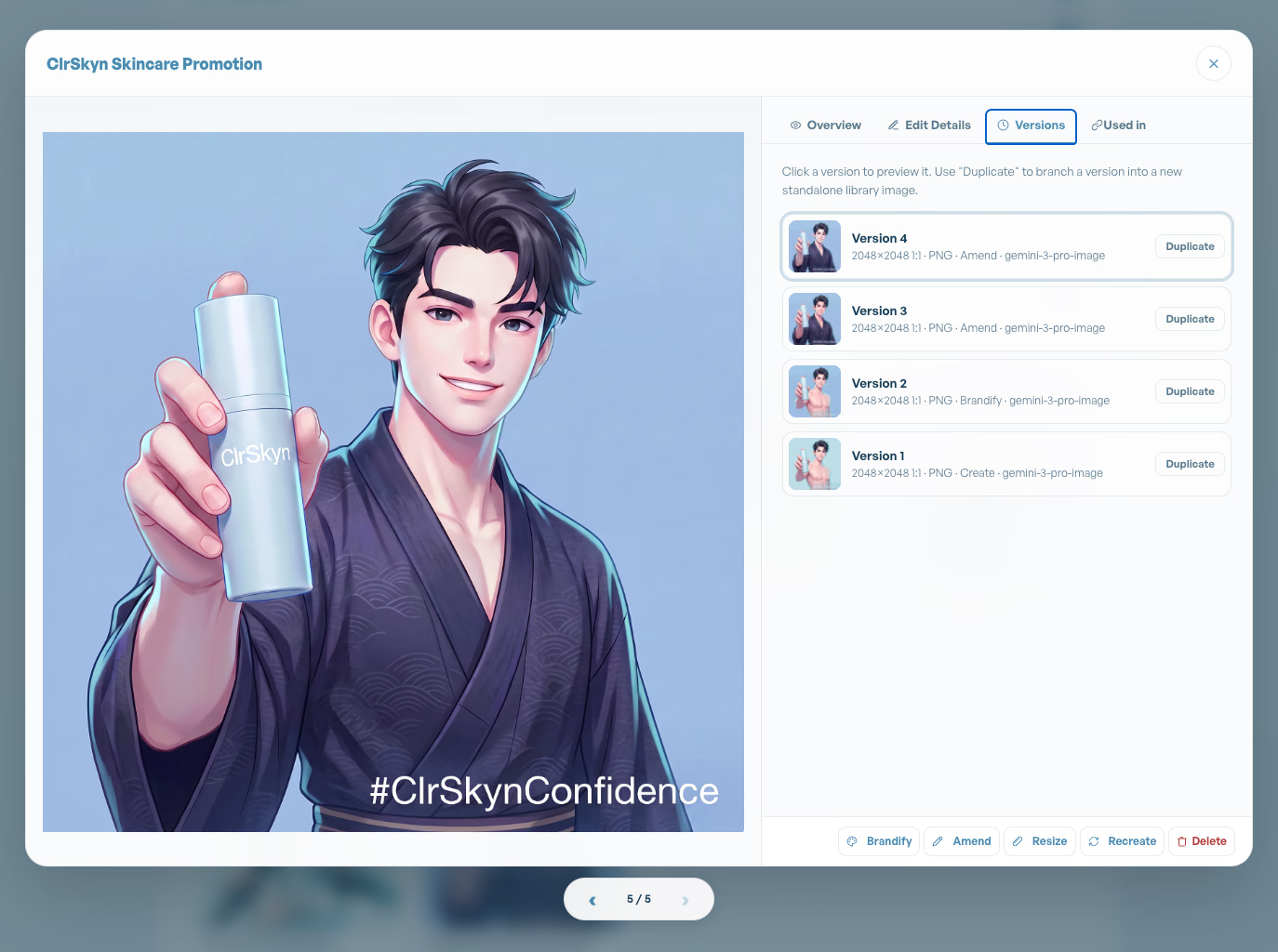
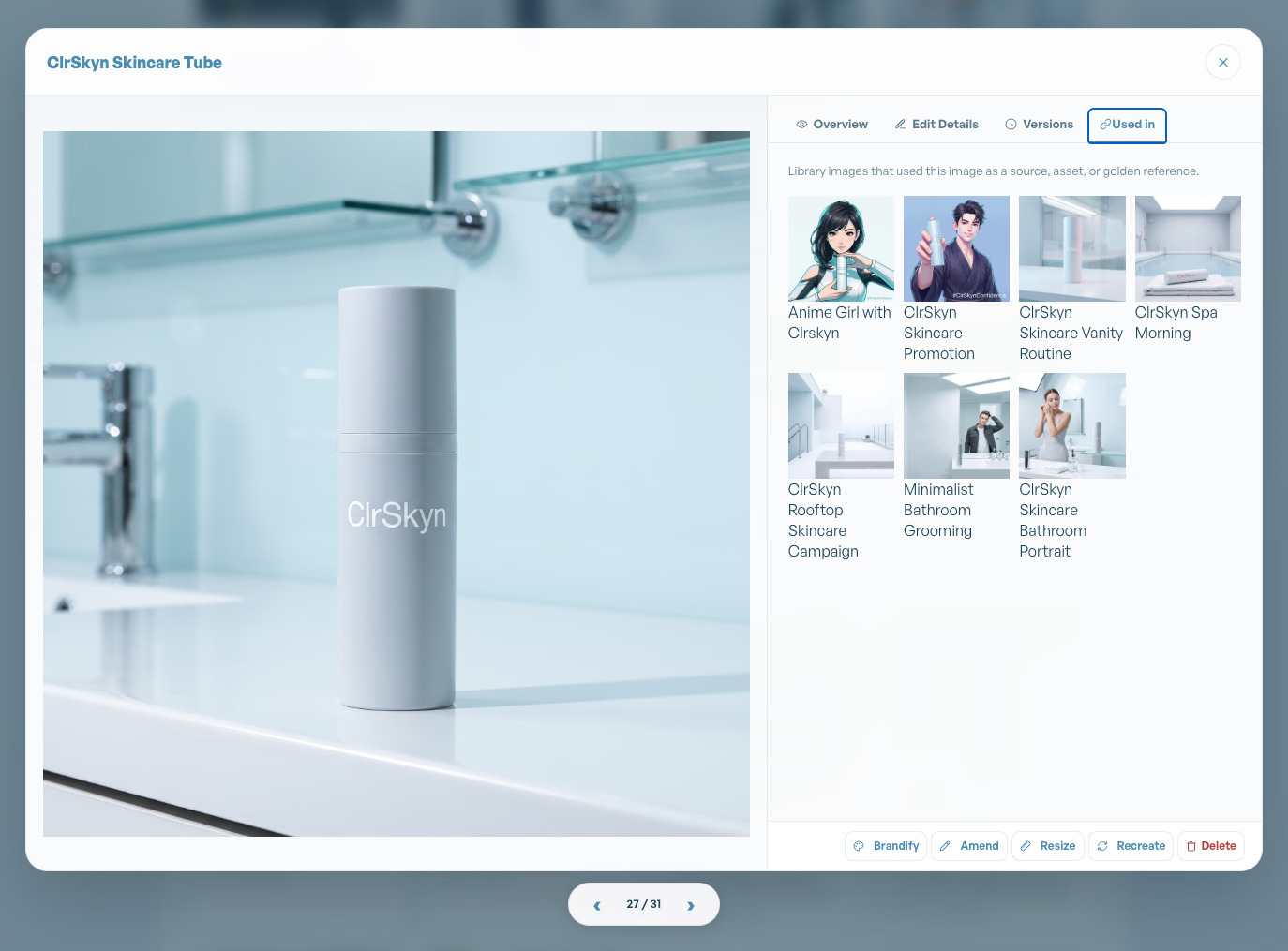
Click any tile in the library and it opens full size, with four tabs and a row of actions along the bottom.
Overview
The description Abni wrote for it, its tags, the assets it used, and its score against the brand, colour-coded so a miss is obvious at a glance. Below that, a line of facts: which version you're looking at, the size and aspect ratio, the format, and the process that made it. The Hero toggles let you put this image on the tile of its Level 1, Level 2 or Level 3 folder.
Edit details
Change the title. If you've changed the image and the description no longer matches, say what changed and press Update with AI; Abni rewrites the description and tags for you.
Versions
Abni never overwrites your work. Every amend, resize and brandify lands as a new version of the same image, so the history is one click deep. Click a version to preview it. Roll back to any earlier one, free of charge, or duplicate a version into a standalone image when you want to take it in a different direction without touching the original.
Used in
Every image that used this one as a source, an asset or a golden reference. Useful when you're about to delete something and want to know what leans on it.
The action row
Brandify, Amend, Resize and Recreate start a process with this image already picked. Delete sends it to Trash for 30 days.
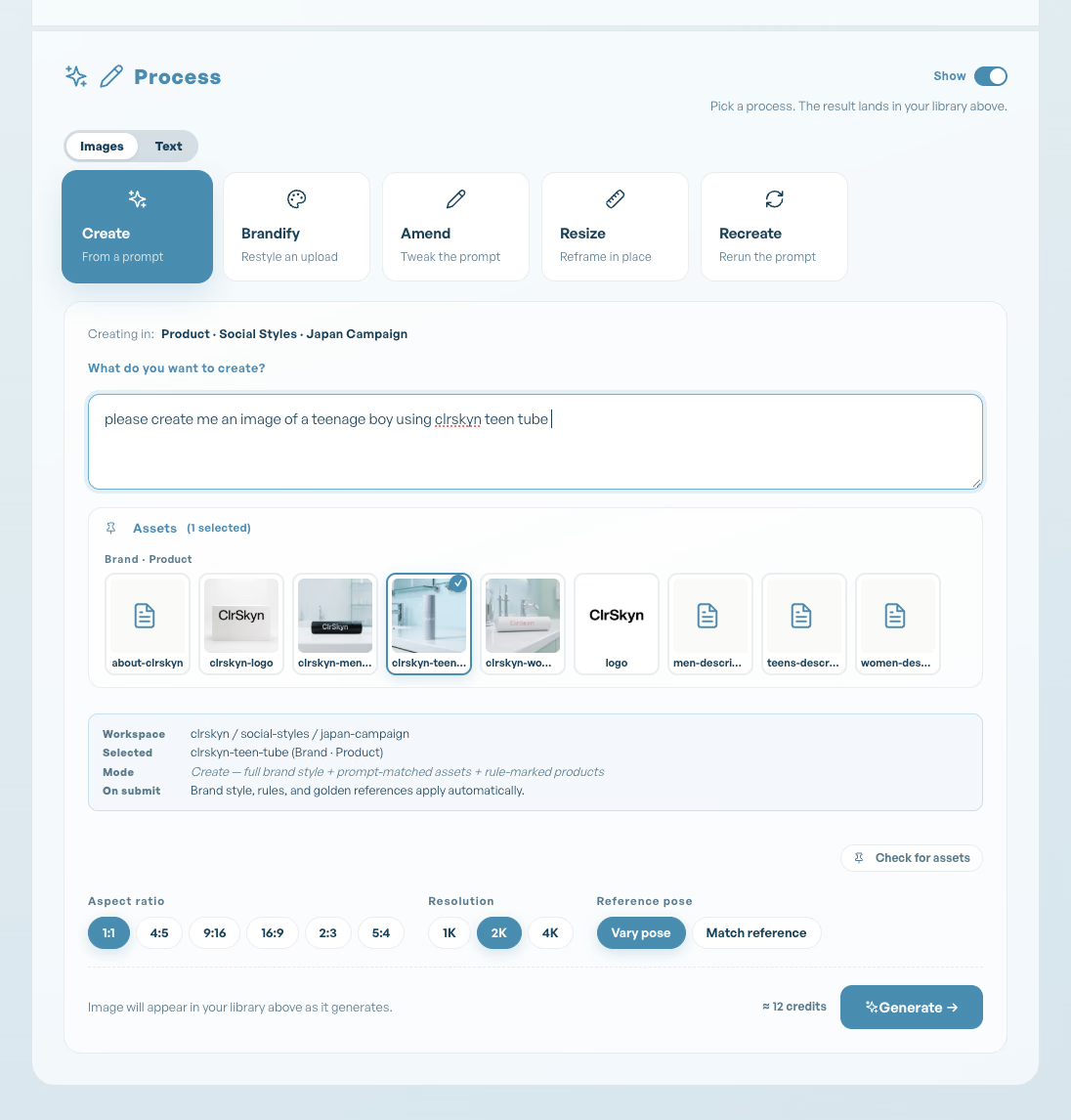
Five processes. Pick one, the result lands in your library.
The Process panel is the toolbox. Every process shows its cost in credits before you press the button.
Create
Describe the image you want. A doctor holding a brochure on a clinical background. Choose an aspect ratio and a resolution (1K, 2K or 4K). If you don't choose one and your brand has a format rule (say, always 16:9), Abni uses that shape. If your brief names an asset, Check for assets will find it, or pick from the asset picker. When an asset is attached you can choose Vary pose, which keeps the identity but stages a fresh composition, or Match reference, which copies the reference's pose and framing too. Press Generate and the image appears in the library as it renders, with the folder's full brand context applied.
Brandify
Good starting point, wrong brand. Pick up to five images from your library or drop them in, add any instructions, and choose how far to take it. Whichever you choose, the result is drawn in your brand's style and colours, and the subject keeps its own colours: a red drink stays red, a label keeps its colours.
- Scene keeps everything where it is and re-renders the whole picture in your brand's style, colour and light. It's the default.
- Subject keeps the subject exactly as it is and gives it a new setting from your brand's world.
- World is the full brandify: the subject is rebuilt as a native of your brand's world, still recognisably itself, with details free to adapt to fit in.
Abni remembers your choice per folder.
The result keeps the shape of the image you started with (Original) unless your brand has a format rule, which then sets it. Pick an aspect ratio yourself and your choice wins.
Amend
Change one thing without starting again. Pick the image, then either describe the change or draw a box on each area that should change and say what happens in it. Amend is a surgical edit: the brand context isn't re-applied, so everything you didn't mention stays exactly as it was. The result is a new version of the same image.
Resize
Same thing, different box. Pick the image, choose the new aspect ratio and resolution. Content and style are preserved; the result lands as a new version.
Recreate
Another one like that, please. Pick an image and its original brief is pre-filled; tweak it or leave it. The full brand context applies and the result is a brand-new image in the same folder.
Every generated image is scored against the brand as it's made. Open the image to see the score; under 60 means it missed, and the chat will usually have already told you why.
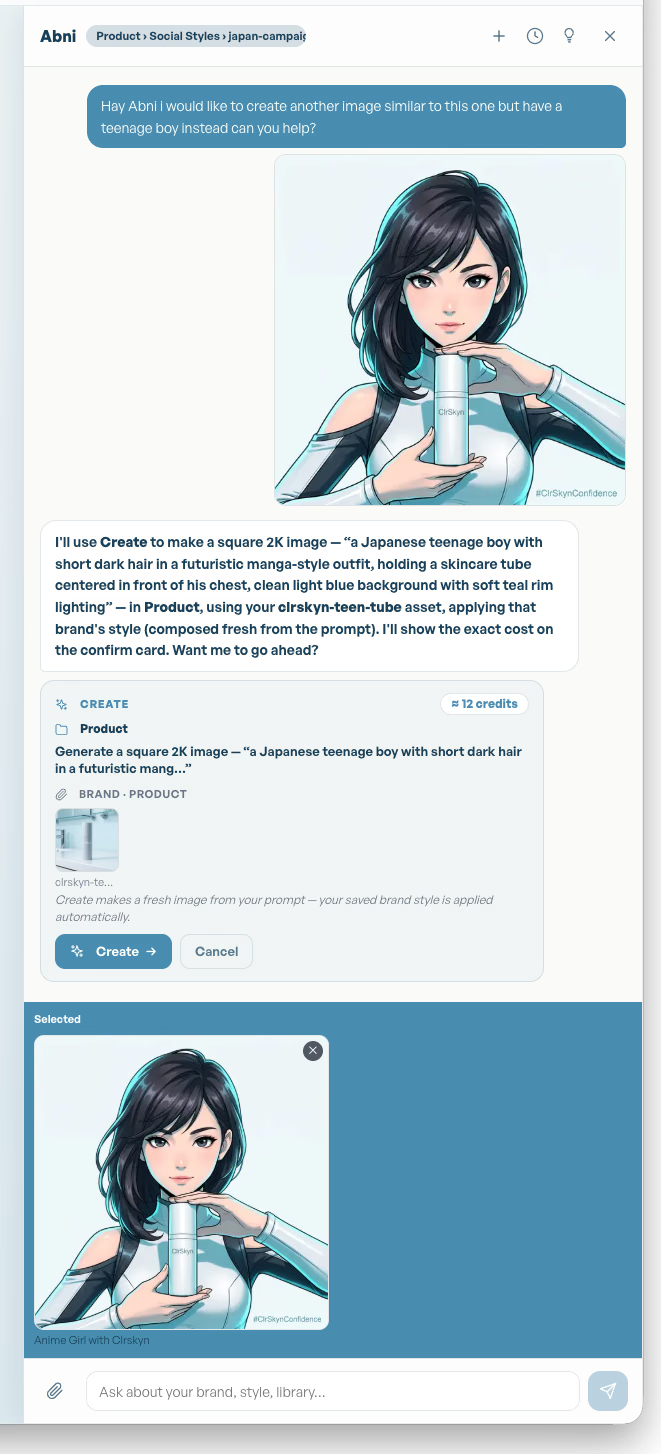
Ask Abni. It knows the folder you're standing in.
If you're new, start here. Ask Abni is the same studio in conversation, and it will guide you through the whole thing.
Open it from Ask Abni in the top bar. With no folders yet, it offers to set up your first one and walks you through it: what to call it, what it's for, which images to teach it from. You don't need a finished brand style to begin. Describe the sort of brand you want to create, a warm, hand-drawn look for an independent bakery, and it works as a creative partner: it makes a few directions, asks what feels right, extracts the style from the one you choose, and suggests the rules to keep it there. The folder tree, the references, the rules and the purpose all get built as you talk.
Everything the process panels do, chat can do, and it's the fastest way to teach a folder what it's for. The chip next to the title shows which folder the chat is working in. It follows the folder you're viewing; if you move while a job is running it will ask whether to keep building where it was or come with you.
What it does
Ask about the brand: what's my photo style in this folder, what rules apply here, why are my images coming out generic. It reads the folder's extracted style, rules, assets and purpose, and answers from them, not from guesswork. Ask it to show you everything made in a folder, to find web references for a look, or to read a document you've attached.
Ask it to make things: an image, or several prompts at once; a set, such as a character turnaround, a product pack, or one subject across every channel format; a brandify, an amend, a resize. Ask it to use the colours from one image without drawing that image. Ask it to just imagine something with no brand applied at all, when you want to play.
Ask it to organise: create a Level 1, 2 or 3 folder; add or edit a rule; warm the palette up; extract the style; lock a folder; save a library image as a named asset; set a hero image; roll an image back to an earlier version.
Tell it things worth keeping. Remember that we always export PNG. This campaign is for the trade show, not consumers. It saves the fact against the folder, recalls it every time, and What Abni remembers shows the full list so you can forget anything that's gone stale.
Nothing is charged without your say-so
Whenever chat is about to do something that costs credits, it shows a card naming the tool it will use, what it's about to do, and the cost. Nothing happens until you confirm. Bigger jobs come as a plan with steps you approve once and can pause at any point. Free actions, like opening a folder or rolling back a version, just happen.
It checks its own work
When an image lands, Abni looks at how it did and tells you. A routine result gets a line. One that missed the brand gets a proper critique, what went wrong and why, and an offer to fix it, so the conversation continues from a shared view of the picture rather than from you having to explain what you're seeing.
Chat can't delete folders, rules or images; those stay in the dashboard on purpose.
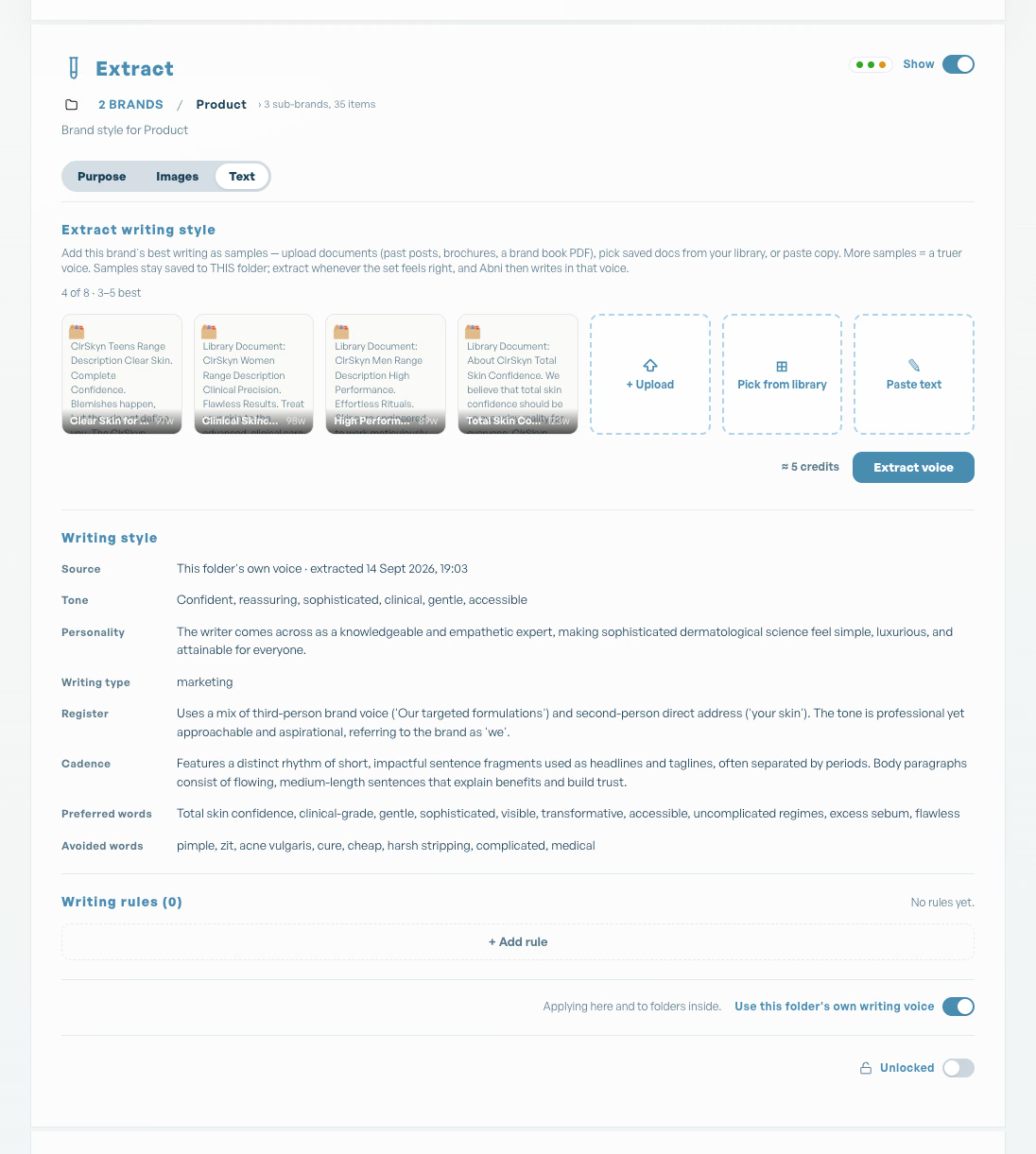
Copy that sounds like you, with your house rules applied.
Text works the way images do. Teach the folder its voice once, then create, brandify, amend and resize copy in it.
In the Extract panel, the Text tab holds Writing style. Give it three to five pieces of your best real copy: upload documents, pick saved ones from the library, or paste. Press Extract voice and Abni learns the writing type, the preferred and avoided words, the rhythm, and suggests writing rules to go with them. Like images, a folder can have its own voice or inherit the parent's. A tip: PDFs made from Word or Google Docs extract well; a PDF whose pages are pictures gives almost no text.
Switch the Process panel from Images to Text and the same five moves appear. Create writes from a brief, in this voice, with an optional format such as Instagram caption or email subject line. Brandify rewrites your draft on-brand, keeping the meaning, facts and figures. Amend makes the one change you name and leaves every other word alone. Resize reshapes a piece to a length: half as long, under 150 characters, three short paragraphs. Recreate takes a fresh run at the same brief.
Writing rules
Rules are what keep copy on-brand between one piece and the next. Never use exclamation marks. Prices always carry the currency symbol. We say "members", never "users". Extraction suggests a first set; add your own in the Writing rules block of the Text tab, switch any rule off to pause it, and let rules set on the brand flow down to every folder beneath. A writing rule can pin an asset too, an image or a document, so always describe the bottle as pictured carries the actual bottle with it. Every text process applies them, and Proofread, on any text document in the library, checks a piece against them without changing a word. Proofread is free, and it's the fastest way to see whether something is ready.
The rule document
The most important text feature is also the least visible. Your brand's insisted-on and forbidden words live in a house dictionary: one document, a line per rule, wrong => right or TERM = what it stands for. It is enforced deterministically on every piece of text Abni writes or checks, not left to the model's judgement. You don't build it by hand. Ask Abni in chat to create the rule document for the folder, tell it the words as you think of them, we never say "users", always "members"; ROI is always spelled out the first time, and it writes and maintains the document for you. Keep adding to it as you go; every addition applies from the next piece of text onward.
One unit for everything. You always see the price first.
Everything Abni makes draws credits from your studio's balance. The credits chip in the top bar shows what's left.
Click it for Credits & billing: your balance, Recent activity (every deduction, what it was for), and Operation costs, the rate card for each process at each resolution. The pricing page shows the same live rates for what a credit costs on each pack and plan.
Every process panel shows ≈ N credits before you press go. If you're short, a Top up credits link appears, and if you go ahead anyway a Not enough credits dialog shows what you need against what you have. Team members who can't buy credits can send a request to the studio's admin from the same dialog.
Packs and subscriptions
A credit pack is a one-off top-up: pay once, no recurring charge. A subscription adds credits every month and can be changed or cancelled at any time from the same sheet; cancelling keeps everything running until the end of the period you've paid for. Receipts and invoices live in your Stripe billing portal, linked from the sheet.
What's free
Proofreading text. Opening folders and browsing. Rolling an image back to an earlier version. Saving a library image as an asset. Asking chat what it can do.
Invite people, choose what they can do.
Abni is built to be left with a team. Invite them from Users in the top bar.
Enter an email, pick a role, press Send invite. They get a link that signs them straight into your studio. Their access is tied to it, so removing someone later is one click.
Viewer
Can open everything and change nothing. Browse the folders, the library, the extracted style and the rules; download images; read the chat. Can't create, edit, lock or unlock. Right for stakeholders who need to see the work without being able to nudge it.
Creator
Can make and change things: create, brandify, amend, resize and recreate images; write and rework copy; upload to the library and set assets; add and edit rules; extract and lock a folder's style; talk to Abni. Can't buy credits or manage people, and when credits run low they can send the admin a request from inside the app.
Admin
Everything a Creator can do, plus the studio itself: invite people and change their roles, add or remove the card, buy credit packs and manage the subscription. Every studio needs at least one admin, and Abni won't let you remove the last one. Roles can be changed at any time from the members list.
Automate your creativity with the Abni API.
Everything the studio does is an API call. The work your team does by hand can run on its own: on brand, audited, and at any scale.
Connect Abni to the systems you already run and let the creative work happen as things change:
- Every new product gets its images. A product feed updates, and a set of on-brand images lands in the right folder.
- Every upload gets brandified. A photo arrives in a bucket or drop folder and comes back in your brand style.
- Every channel gets its size. One approved image is resized and recreated for each format you publish to.
- Every image gets its words. Copy is written in the folder's brand voice, right next to the image it goes with.
- Finished work goes where it's needed. Audited images flow into your DAM, CMS or your own app.
Works with the tools you already use
Any automation tool that can make a web request can drive Abni with your API key: n8n, Zapier, Make, Power Automate, Pipedream or your own code. No plugin needed. Abni's webhook tells your workflow the moment an image is ready, so the next step can start straight away.
Example: a banner for every article
A company publishes a new article. Their automation picks it up and sends the headline and summary to the right Abni folder for that brand or section. Abni makes a banner image in that folder's brand style, checks it against the brand, and writes the alt text and a social post to go with it in the brand's voice. The banner and the words go back into the CMS as a draft, and an editor approves it. Nobody briefs a designer and nobody opens the dashboard: the creative work happens on its own, and people make the calls.
Every API request uses the same brand style, rules and assets as the dashboard and chat, every image is audited for brand and quality before it reaches you, and the same credits pay for it.
Read the API docs → for authentication, every endpoint, error codes and webhooks. Workspace admins create keys in Settings › API & automation (paid workspaces).
The small stuff.
Settings, in the top bar, holds your account, your studio's details and sign-out.
Account shows the email and ID you signed up with and when you joined. Workspace shows the studio's name, plan and your role in it. Sign out clears your session on this browser; a session that's been idle long enough will time out and take you back to sign-in on its own.
Deleted images and documents wait in Trash for 30 days. To close an account or have your data removed, email privacy@abni.ai with Data deletion request in the subject, as set out in the Privacy Policy.
Anything else, support@abni.ai. A real person reads every message.